Lesson 1
Getting Started
Log in, orient the dashboard, invite your team, and learn the Walkthrough, Support, and Arrivolution Assistant entry points.
Work through each step in order, then mark the lesson complete when you are ready to continue.
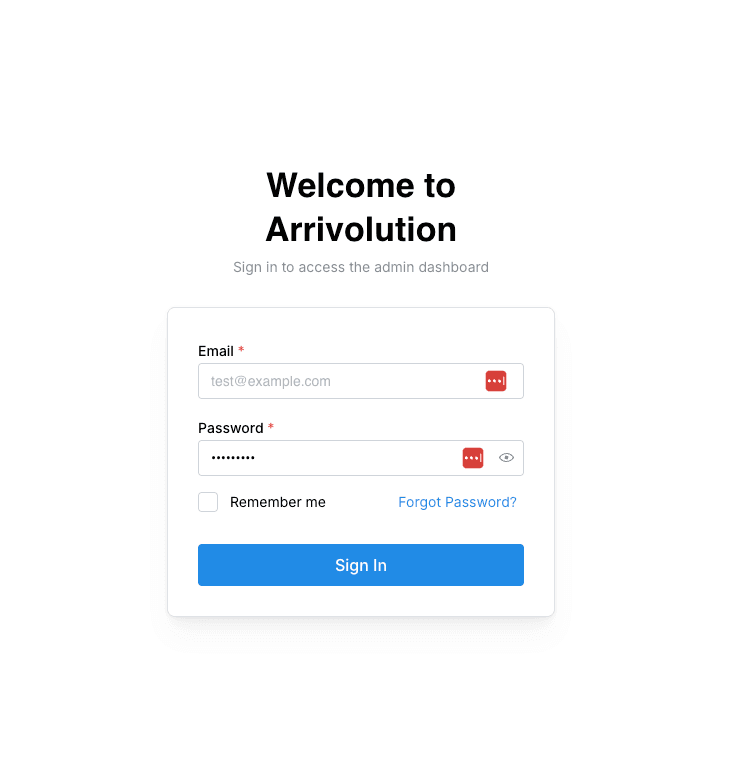
Log in to your account
Open platform.arrivolution.com (or your organization’s staging link) and sign in with the credentials your team provided. First-time property managers usually receive a welcome email with a temporary password.
Bookmark the login page so your onsite team can reach the portal quickly.
Explore the dashboard
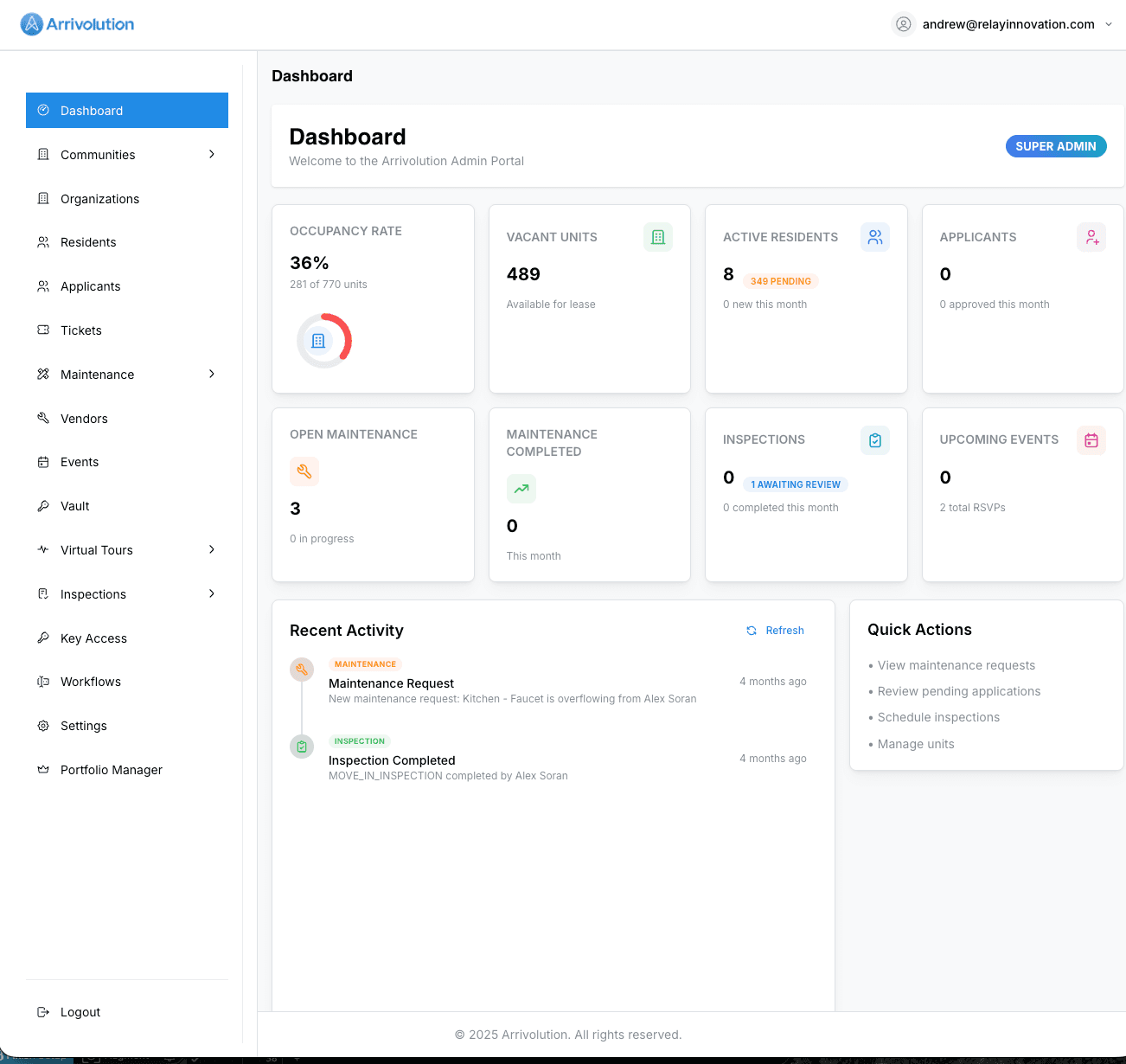
The dashboard is your portfolio command center: occupancy, recent leasing activity, open tasks, and shortcuts into the areas you manage day to day. Use the left navigation to move between properties, residents, maintenance, and accounting.
Update your profile
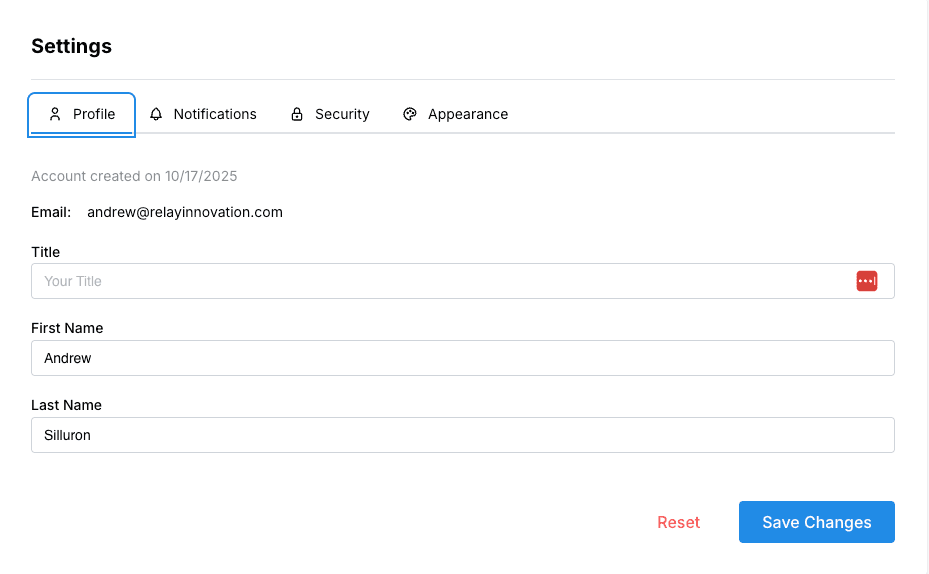
Select your name in the top-right corner and open Settings to confirm contact details, notification preferences, and security options for your manager account.
Invite your team
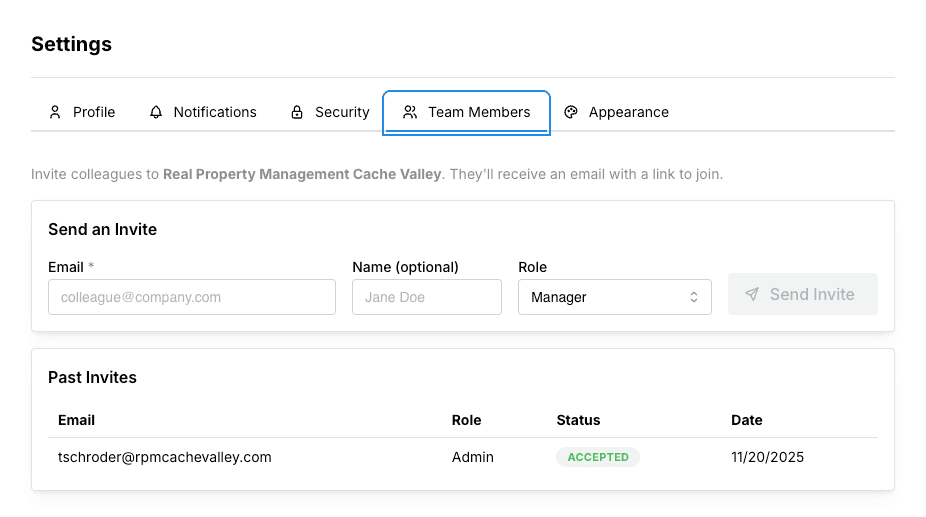
In Settings, open Team Members to add colleagues at your property or management company. Assign roles (Admin, Manager, or Viewer) so each person sees only what they need for their job.
Each team member gets their own login. Do not share credentials across the site team.
Use the in-app Walkthrough
Select Walkthrough in the top header to open the tab walkthrough panel. It stays available as you move through the admin portal and guides you step by step on the page you are on, including checklists you can pop out while you work. Use it when onboarding new managers or learning a workflow on a live property record.
Walkthrough content updates as Arrivolution ships new admin tools. Check back when a menu item is new to you.
Get help with Support
Select Support in the top header to open the Help drawer on the Support tab. Describe what is happening and where in the app you see it. The assistant triages your message and can file an internal ticket (for example a bug fix or a suggested improvement) when your role allows. This is the right place to report something broken or ask for a product change, not day-to-day data lookups.
Support filing is limited to admin roles. If you do not see the chat, ask your organization admin to confirm your permissions.
Work with the Arrivolution Assistant
Open the Arrivolution Assistant from the vertical tab on the right edge of the screen. It is scoped to the organization selected in the header, so confirm the correct property management company or owner entity is selected before you ask questions. Use it for operational help: finding residents or units, walking through leasing steps, and similar tasks in your portfolio. It is separate from Support ticket filing in the header.
The Help drawer’s Assistant tab can also launch this panel if you prefer starting from the top of the screen.