Lesson 5
Camera Connection
The foolproof Wi-Fi sequence so your phone and camera connect first try.
Work through each step in order, then mark the lesson complete when you are ready to continue.
Phones and 360 cameras often fight for connection. Follow these steps exactly to connect on the first try.
A Turn the camera ON
Ensure the battery is fully charged before heading to the property.
B Connect to the camera's Wi-Fi
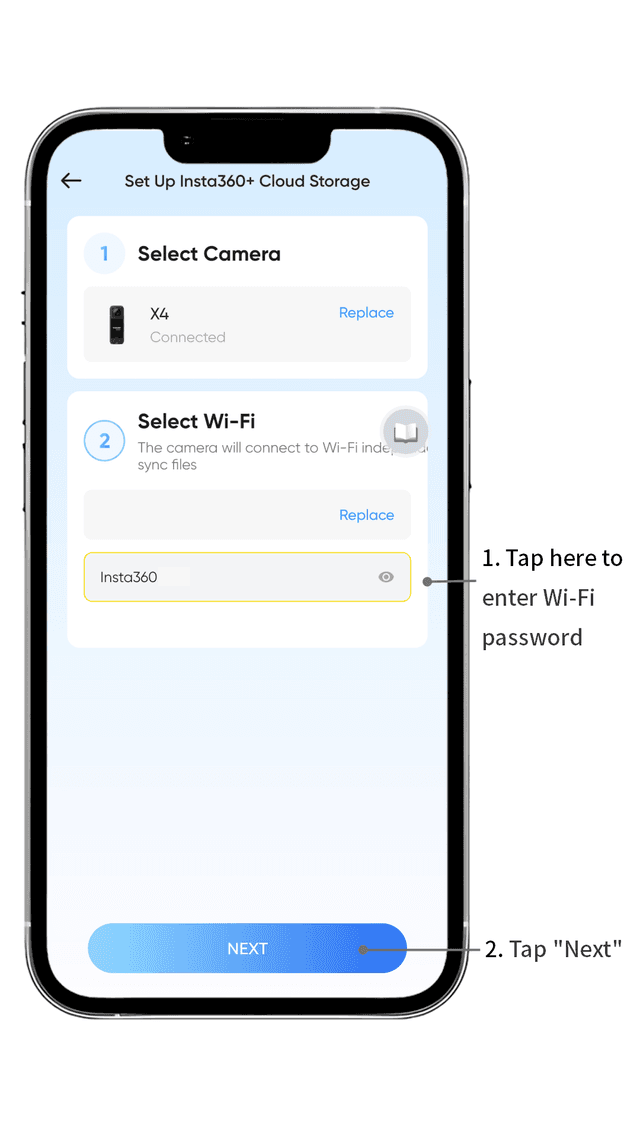
Do not use Bluetooth. Go to your phone's main Settings > Wi-Fi and look for the camera's network name (e.g., "Insta360..."). Tap to connect.
C Close the camera's app
If you have the Insta360 app open in the background, force close it. If both the Insta360 app and the Matterport app are open, they will fight for the camera and the connection will fail.
D Open the Matterport App
Log in to the company Matterport account from account setup. Then connect the camera inside the Matterport app (after the camera's own app is closed).
E Start a New Job
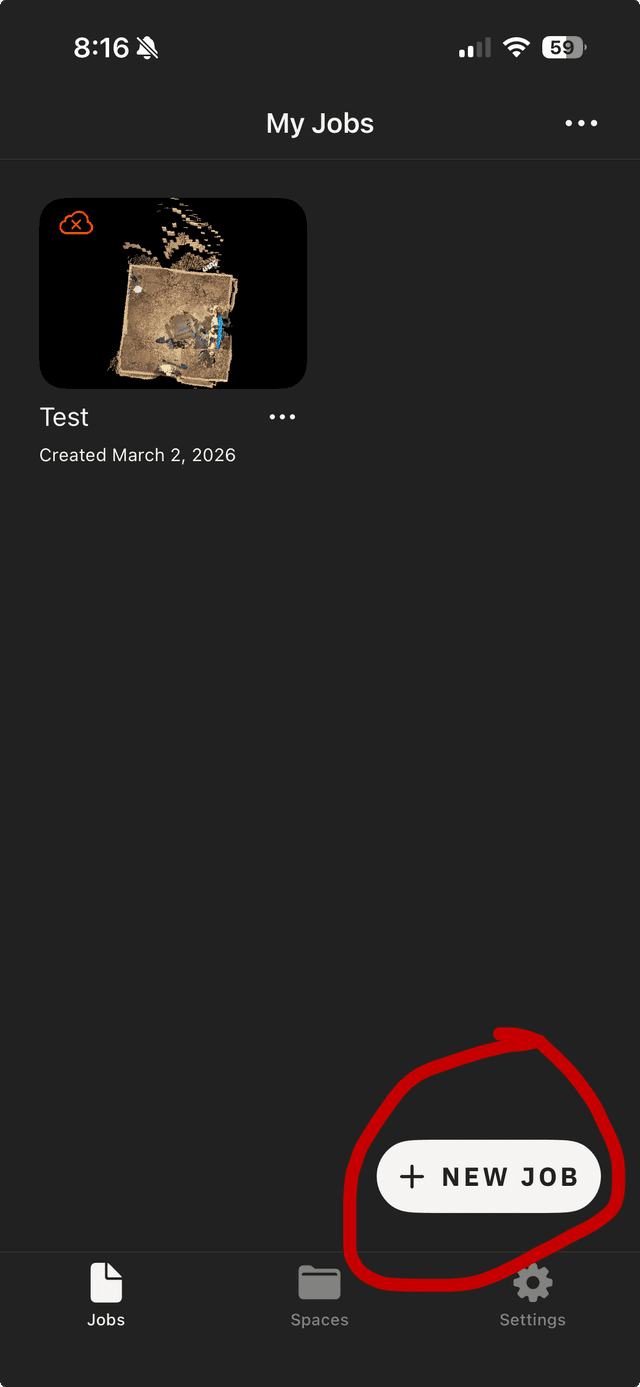
Tap the + New Job button, enter the property address, and tap the camera icon to sync.